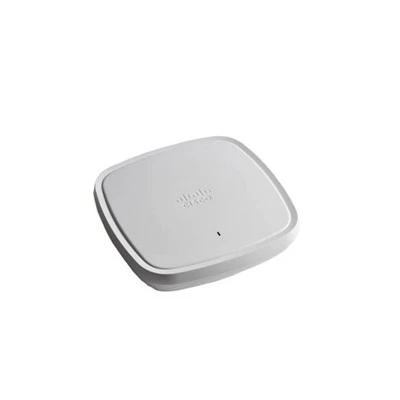



As a supplier of the C9800 - 40 - K9 wireless controller, I understand the importance of configuring the authentication mechanism correctly. A proper authentication setup not only enhances the security of your wireless network but also ensures seamless access for authorized users. In this blog, I'll guide you through the process of configuring the authentication mechanism on the C9800 - 40 - K9.
Understanding the C9800 - 40 - K9
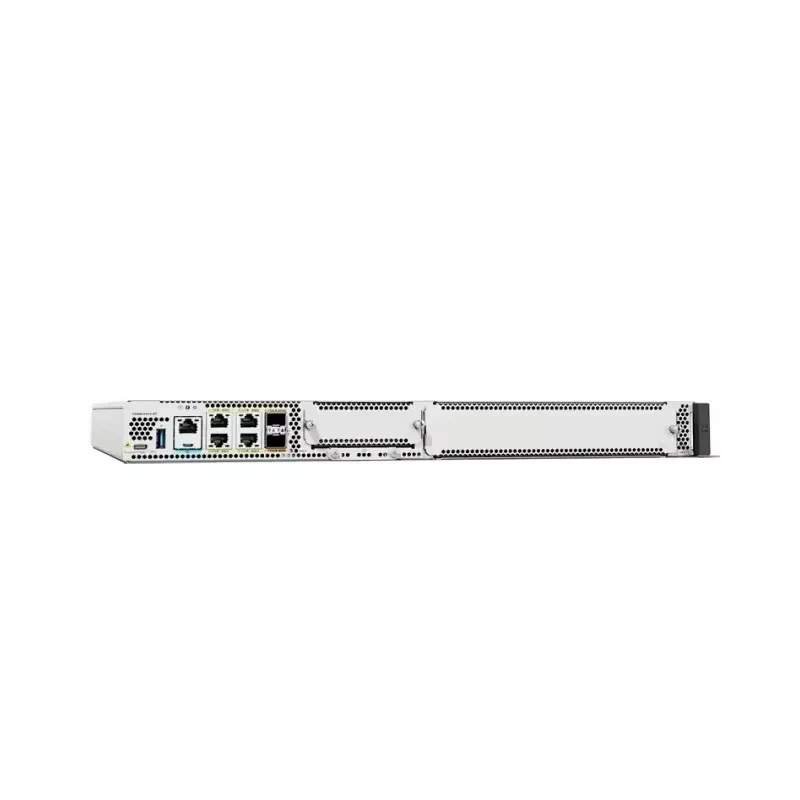
The C9800 - 40 - K9 is a high - performance wireless controller model from Cisco, designed to manage a large number of access points efficiently. It offers advanced features for network management, security, and mobility. You can find more details about it on its official page C9800 - 40 - K9.
Before diving into the authentication configuration, it's crucial to understand the two main types of authentication mechanisms commonly used with the C9800 - 40 - K9: open authentication and enterprise authentication.
Open Authentication
Open authentication is the simplest form of authentication. It allows any client to connect to the wireless network without the need for a password. While it's easy to set up, it offers very little security. This type of authentication is suitable for public areas where security requirements are low, such as in a coffee shop or an airport lounge.
To configure open authentication on the C9800 - 40 - K9, you first need to access the controller's web - based management interface. After logging in, navigate to the 'Wireless' section and select 'SSIDs'. Create a new SSID or edit an existing one. Under the 'Security' tab, choose 'Open' as the authentication type. You can then save the settings, and the SSID will be configured for open authentication.
Enterprise Authentication
Enterprise authentication is a more secure option, typically used in corporate or educational environments. It uses 802.1X authentication, which requires clients to provide valid credentials, such as a username and password, before they can connect to the network. This type of authentication relies on a RADIUS server to verify the client's credentials.
Prerequisites for Enterprise Authentication
Before configuring enterprise authentication, you need to have a RADIUS server set up. The RADIUS server can be a Windows Server with NPS (Network Policy Server) or a Linux - based server running FreeRADIUS. You also need to know the IP address of the RADIUS server, the shared secret between the C9800 - 40 - K9 and the RADIUS server, and the user database on the RADIUS server.
Configuring Enterprise Authentication on C9800 - 40 - K9
Step 1: Configure the RADIUS Server on the Controller
- Log in to the C9800 - 40 - K9 web - based management interface.
- Navigate to 'Configuration' > 'Security' > 'AAA' > 'Servers' > 'RADIUS'.
- Click 'Add' to create a new RADIUS server entry.
- Enter the IP address of the RADIUS server and the shared secret. The shared secret is a password that must match on both the C9800 - 40 - K9 and the RADIUS server.
- Click 'Apply' to save the RADIUS server configuration.
Step 2: Create an Authentication Profile
- Go to 'Configuration' > 'Security' > 'AAA' > 'Profiles'.
- Click 'Add' to create a new authentication profile.
- Enter a name for the profile, for example, 'Enterprise - Auth'.
- Under 'Method List', select 'RADIUS' as the authentication method.
- Link the RADIUS server that you created in Step 1 to this profile.
- Click 'Apply' to save the authentication profile.
Step 3: Configure the SSID for Enterprise Authentication
- Navigate to 'Wireless' > 'SSIDs'.
- Create a new SSID or edit an existing one that you want to use for enterprise authentication.
- Under the 'Security' tab, select 'WPA2/WPA3 - Enterprise' as the security type.
- Select the authentication profile that you created in Step 2.
- You can also configure other security settings, such as the encryption type (e.g., AES).
- Click 'Apply' to save the SSID configuration.
Advanced Authentication Considerations
Multi - Factor Authentication (MFA)
For even higher security, you can implement multi - factor authentication. MFA requires users to provide two or more forms of identification, such as a password and a one - time code sent to their mobile device. To implement MFA on the C9800 - 40 - K9, you need to integrate the RADIUS server with an MFA service.
Guest Authentication
If you want to provide a guest network, you can configure a separate SSID with a different authentication mechanism. For guest networks, you can use options like captive portals, where users are required to accept terms and conditions or provide an email address before accessing the network.
Troubleshooting Authentication Issues
If you encounter problems with authentication on the C9800 - 40 - K9, here are some common issues and solutions:
Incorrect RADIUS Server Configuration
If clients are unable to authenticate, check if the RADIUS server IP address and shared secret are correct on the C9800 - 40 - K9. Also, verify that the RADIUS server is running and accessible from the controller.


Client Configuration Issues
Make sure that clients are configured correctly. For enterprise authentication, clients need to have the correct SSID, security settings, and authentication credentials.
RADIUS Server Load
If the RADIUS server is overloaded, it may cause authentication delays or failures. Consider adding more RADIUS servers or optimizing the existing server's performance.
Other Related Cisco Wireless Controllers
In addition to the C9800 - 40 - K9, there are other models in the Cisco wireless controller family that you might be interested in:
- C9800 - L - C - K9: This is a more lightweight wireless controller, suitable for small to medium - sized deployments.
- C9800 - L - F - K9: Another lightweight option with specific feature sets for different network requirements.
- C9800 - 80 - K9: A more powerful model compared to the C9800 - 40 - K9, designed for large - scale enterprise deployments.
Contact for Procurement and Consultation
If you're interested in purchasing the C9800 - 40 - K9 or other Cisco wireless controllers, or if you need further assistance with authentication configuration or network design, feel free to reach out to us. We have a team of experts ready to help you with your specific needs.
References
- Cisco C9800 - 40 - K9 product documentation
- RADIUS server configuration guides (e.g., Windows NPS, FreeRADIUS)